
Connecting Google Search Console
The Entity Authority Platform (EAP) relies on first-party data directly from the Google Search Console (GSC) API. By establishing a secure connection, EAP can monitor your entity’s health, detect traffic decay, and identify striking distance opportunities in real-time.
“Without a verified GSC connection, the EAP algorithms are blind. This is the first and most critical step in building your digital moat.”
Why API Connection Matters
Unlike old-school SEO tools that rely on third-party scrapers and estimated traffic volumes, EAP communicates directly with Google’s servers. This ensures 100% accuracy and allows for advanced features like the Index Watchdog and Ghost Page Detector.
Security & Permissions
- OAuth 2.0 Security: EAP never sees or stores your Google password.
- Read-Only Access: We strictly request the minimum permissions needed to analyze your data.
- Instant Disconnect: You can revoke access at any time from your EAP settings or Google Account dashboard.
How to Connect
Follow these steps to authorize EAP to read your Search Console data.
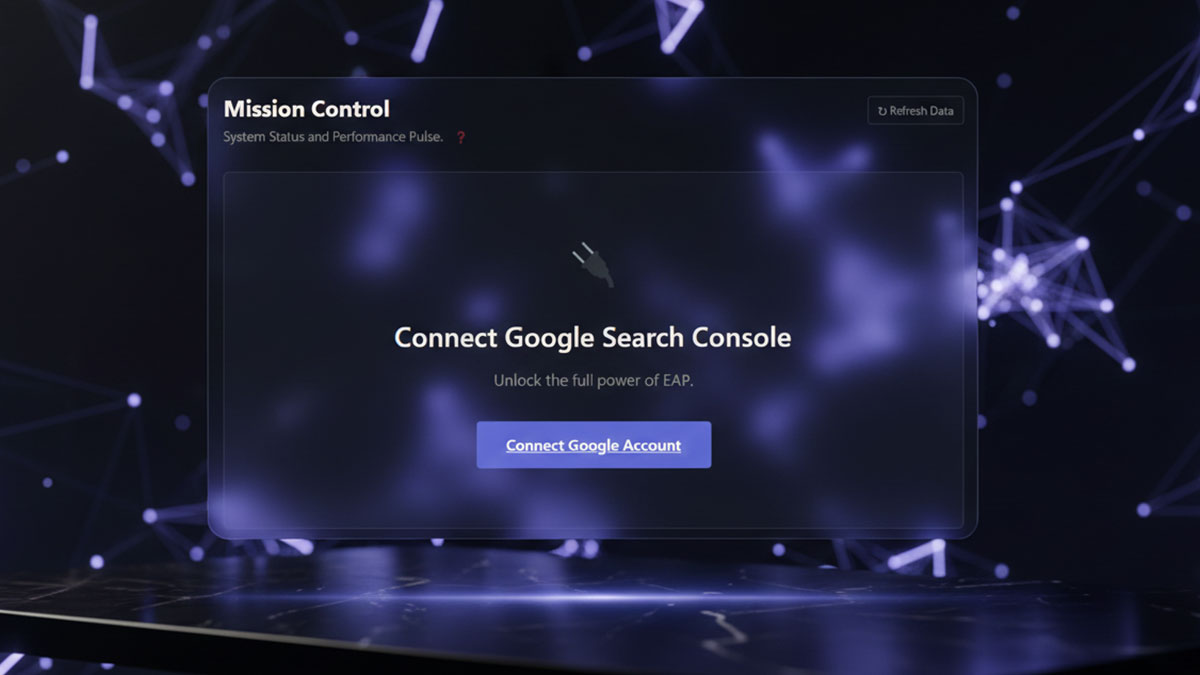
- Navigate to Mission Control: Log in to your EAP Dashboard.
- Initiate OAuth: Click the “Connect Google Account” button. You will be redirected to Google’s secure authorization screen.
- Select Account: Choose the Google Account that has owner or full-user access to your client properties.
- Authorize Permissions: Review the scopes and click “Allow.”
- Select Your Property: Once redirected back to EAP, use the “Active Property” dropdown to choose the specific website you want to analyze.
Was this documentation helpful?
Experiencing an “Invalid Grant” Error?
This usually happens if your Google session has expired. Simply click the “Disconnect” button in your Settings and re-authenticate to refresh the secure token.