

License & Seat Management
Stop digging through old emails to find API keys. The EAP Cloud acts as your centralized command center for both your SaaS subscriptions and your downloadable software licenses.
Understanding Your Licenses
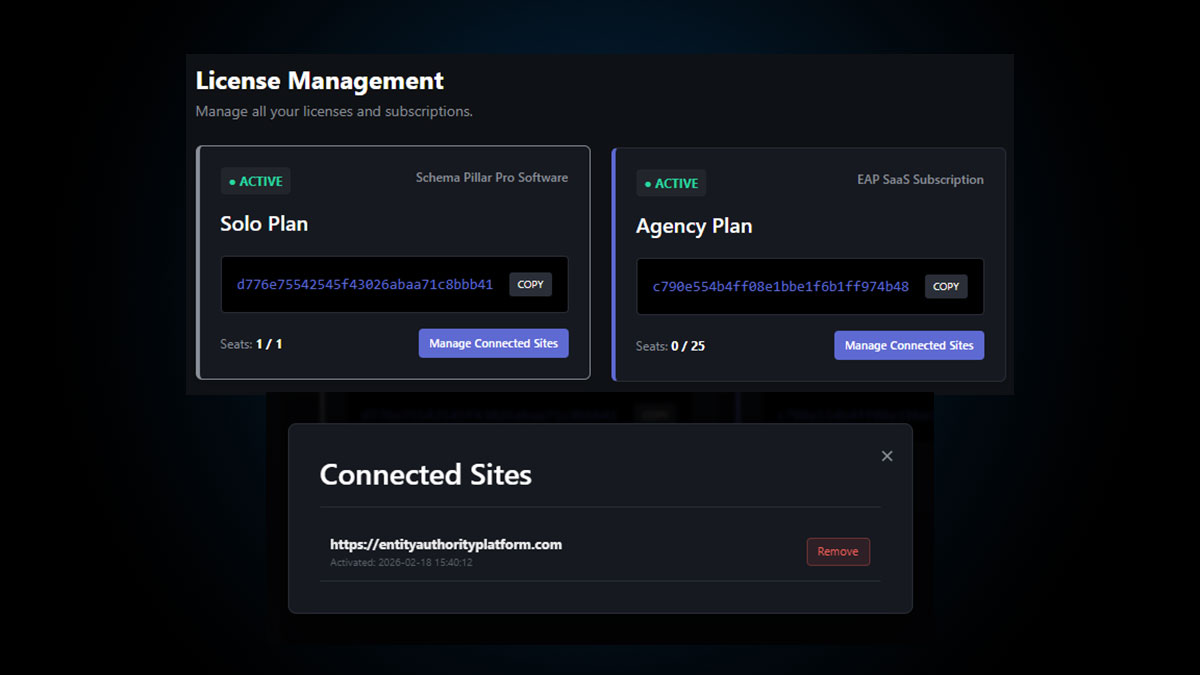
In your Licenses tab, you will see a unified dashboard of all your active products. The system uses color-coded cards to differentiate between your assets:
- Purple Cards (EAP SaaS): These represent your active Entity Authority Platform subscriptions (Solo or Agency). This subscription grants you access to the Cloud Dashboard and Entity Tools.
- Grey Cards (SPP Software): These represent your Schema Pillar Pro WordPress plugin licenses.
Depending on your tier, you will have a specific seat limit. For example, a Solo plan provides a single license seat, while an Agency plan typically provides up to 25 seats to deploy across your client roster.
How to Manage Client Seats
If you hit your seat limit, or if an agency client cancels their retainer, you can easily remove their website from your license pool to free up the seat.
- Access License Manager: Navigate to the Licenses tab in your main EAP navigation menu.
- Open Seat Modal: Locate the specific license you want to manage and click the “Manage Connected Sites” button.
- Review Active Sites: A modal will appear showing every domain currently authenticated with that specific license key, along with the exact date it was activated.
- Revoke Access: Click the red “Remove” button next to the domain you wish to disconnect. Confirm the prompt. The site will instantly lose access to Pro features, and your available seat count will immediately increase.
Copying Your License Key
To deploy Schema Pillar Pro to a new client site, simply click the “COPY” button next to the API key on your license card. Paste this directly into the plugin settings on the client’s WordPress site to authenticate.
Ready to manage your agency roster?
View your active subscriptions, check your seat limits, and organize your client domains.